
Managing dozens of microservices, massive infrastructure codebases, CI/CD pipelines, and ad-hoc scripts is the daily reality of a DevOps engineer. If you try to run all of this inside traditional heavy IDEs, your developer environment quickly becomes a sluggish, resource-hogging bottleneck.
In Part 1 of this series, I explained why I left traditional IDEs behind. Today, we are opening the hood of my custom NeoVim and LazyVim setup. We will go through the exact plugins, configurations, and shortcuts I use to tame DevOps chaos, run inline AI models, develop iOS/Swift applications, and execute REST requests right inside my terminal.
Visual Aesthetics: Nordic Transparency
A premium workspace needs to look beautiful and feel distraction-free. For my colorscheme, I use Nordic (AlexvZyl/nordic.nvim). To make it merge seamlessly with a modern transparent terminal (such as WezTerm or Ghostty), I strip out all solid backgrounds.
In my colorscheme.lua configuration, I hook into the ColorScheme autoevent to set background colors (bg) to NONE for all core UI elements:
-- Stripping normal, floating, and file explorer backgrounds
local hl_groups = {
  "Normal", "NormalNC", "NormalFloat", "FloatBorder", "SignColumn",
  "StatusLine", "StatusLineNC", "WinBar", "WinBarNC", "WinSeparator",
  "SnacksNormal", "SnacksFloatNormal", "SnacksFloatBorder", "SnacksPicker",
  "NeoTreeNormal", "NeoTreeNormalNC"
}
for _, group in ipairs(hl_groups) do
  vim.api.nvim_set_hl(0, group, { bg = "NONE", ctermbg = "NONE", force = true })
end
To complete the premium aesthetic, I use Smear Cursor (sphamba/smear-cursor.nvim) with a vibrant dark orchid color (#9932cc). It adds a smooth smear animation when the cursor jumps between windows, scrolls, or switches buffers, making tracking the cursor effortless.
Inline AI: CodeCompanion with OpenRouter
Instead of leaving the terminal to copy-paste code snippets into browser-based AI chats, I use CodeCompanion (olimorris/codecompanion.nvim) configured with OpenRouter.
I have written custom Lua commands to quickly switch models (e.g., Gemini 2.5 Flash Lite, Claude 3.5 Sonnet) and check settings:
:CodeCompanionSelectModel— Switches active OpenRouter models.:CodeCompanionShowConfig— Verifies current adapter and model status.
AI Keymaps
<leader>ac— Toggle CodeCompanion Chat interface.<leader>ai— Bring up CodeCompanion inline actions on selected code blocks.<leader>am— Change active AI model on the fly.
DevOps & Infrastructure Stack
A DevOps workspace is heavily focused on Infrastructure as Code (IaC) and APIs. I configure custom plugins to keep my workflows inside the editor:
1. Terraform & LSP
In my lsp.lua setup, I configure the terraformls language server. I also utilize markdown_oxide to write clean, interconnected docs and runbooks with wikilink support.
2. Kulala: HTTP client inside NeoVim
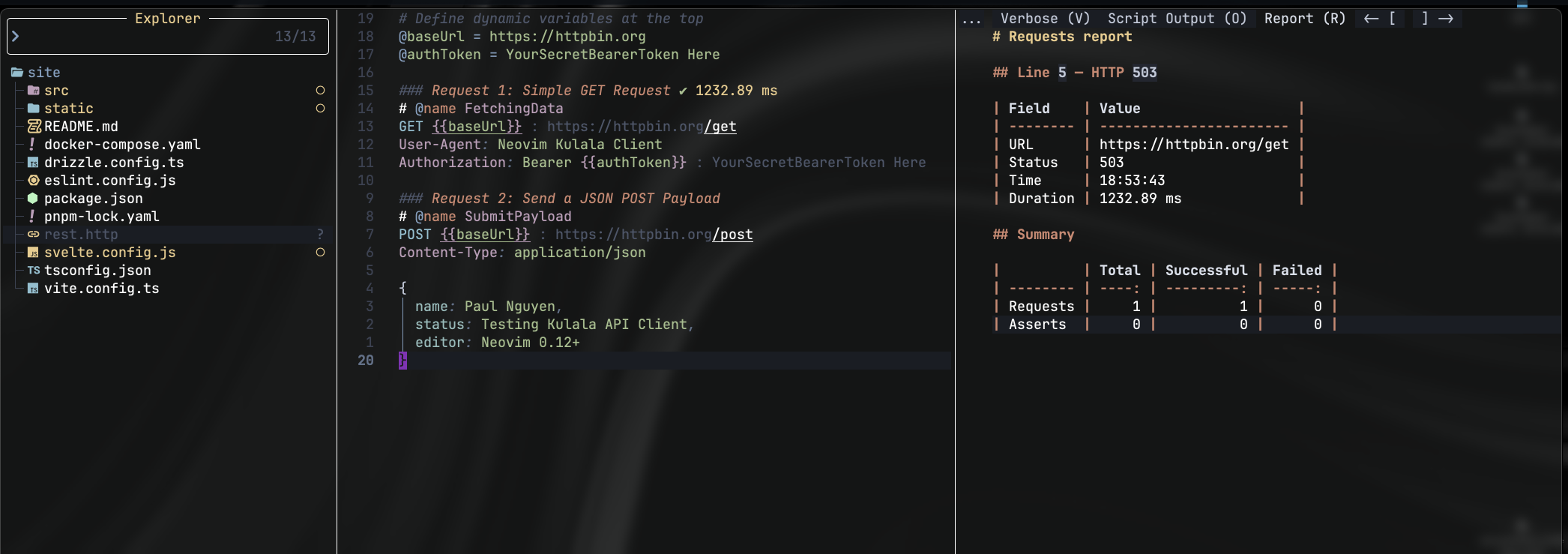
I replaced Postman with Kulala (mistweaverco/kulala.nvim). It detects .http and .rest files, allowing me to draft and run raw HTTP requests directly in the editor. Read more
2.1 features
- Protocols: HTTP, gRPC, GraphQL, WebSocket, Streaming
- Variables: Environment, Document, Request, Dynamic, Prompt, http-client.env files
- Importing and running requests from external *.http files
- Importing and saving request/response data to/from external files
- JavaScript (Jetbrains compatible) Pre-request, Post-request, Conditional, Inline, External
- TypeScript Pre-request, Post-request, Conditional, Inline, External
- Authentication: Basic, Bearer, Digest, NTLM, OAuth2, Negotiate, AWS, SSL
- Response formatting and live filtering
- Assertions, automated testing and reporting
- Built-in LSP completion
- Scratchpad: for making requests
- Compatibility with IntelliJ HTTP Client
2.2 shortcuts
<leader>rr— Run the HTTP request under the cursor.<leader>ra— Execute all requests in the current file.<leader>co— Copy the current request as a ready-to-usecURLcommand.<leader>ct— Toggle the split view between response headers and payload body.
2.3 Demos
- init new file
.httpthen define http methods for make singple request by shortcut<leader>rr
# Define dynamic variables at the top
@baseUrl = https://httpbin.org
@authToken = YourSecretBearerToken Here

### Request 1: Simple GET Request
# @name FetchingData
GET {{baseUrl}}/get
User-Agent: Neovim Kulala Client
Authorization: Bearer {{authToken}}

### Request 2: Send a JSON POST Payload
# @name SubmitPayload
POST {{baseUrl}}/post
Content-Type: application/json

{
  "name": "Paul Nguyen",
  "status": "Testing Kulala API Client",
  "editor": "Neovim 0.12+"
}
iOS & Swift Development on NeoVim
You do not need to boot up heavy Xcode instances to build Swift projects. I configure a fully-fledged Swift development system inside NeoVim:
- SourceKit LSP: In
lsp.lua, I bind the nativesourcekitlanguage server using dynamic root matching patterns likePackage.swiftandbuildServer.json.
You also explore how to quick start the swiftUI on neovim from here
shortcuts
- Xcodebuild Integration (
wojciech-kulik/xcodebuild.nvim):<leader>ib— Build project.<leader>ir— Build and run project.<leader>it— Run tests.<leader>id— Select simulators or physical devices.<leader>ii— Dynamically generate and preview SwiftUI layouts.
demos
quick build project by
<leader>Ito showing up Xcodebuild & Actions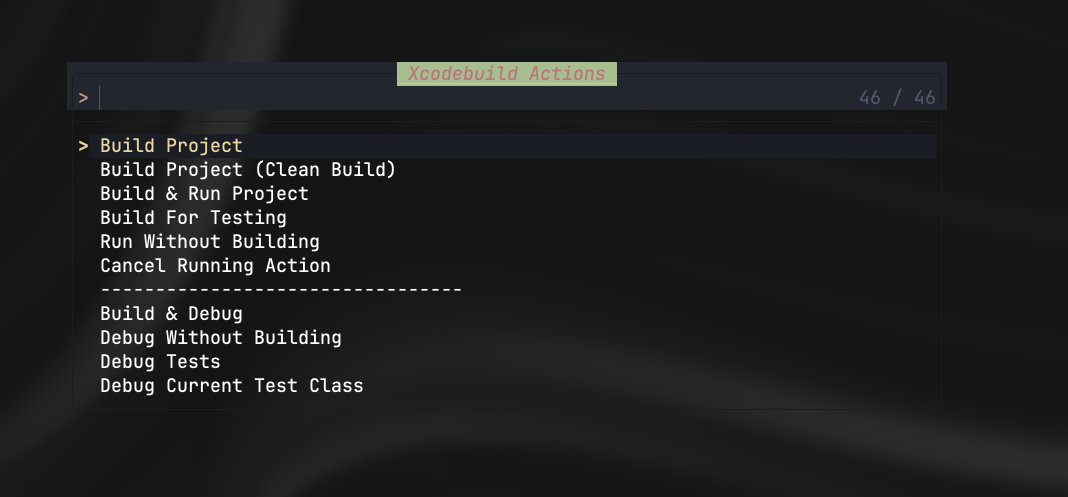
another sub-menus show it up by
<leader>i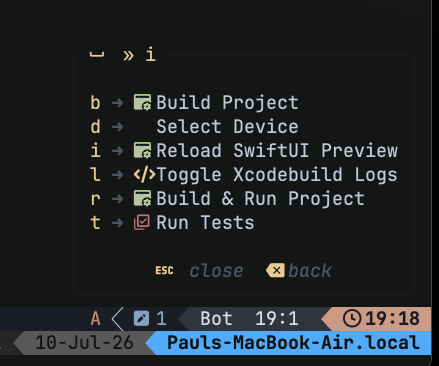
Enterprise Environments: Java & Gradle
Even heavy JVM enterprise workloads run fast in this setup. In my java.lua configuration, I set up mfussenegger/nvim-jdtls to configure Java language features:
- Resolves the Eclipse Equinox Launcher paths dynamically.
- Isolates unique project workspace folders under
~/.local/share/nvim/jdtls/workspace/depending on the directory name. - Interfaces directly with SDKMAN paths to lock onto Java 21 (
JavaSE-21) by default.
Notes and Daily Planning
For journaling, planning DevOps architectures, and tracking daily logs, I run Note (gsuuon/note.nvim) under ~/notes. To avoid keymap conflicts with LazyVim’s default notifications, I re-mapped the key bindings to the <leader>o (Organize) prefix:
shortcuts
<leader>od— Open Daily Note.<leader>oi— Open Notes Index.<leader>os— Live search notes using Telescope grep.<leader>oc— Save and close notes instantly.
Demos
- just hit
<leader>osto open search notes - i usually open daily note by
<leader>od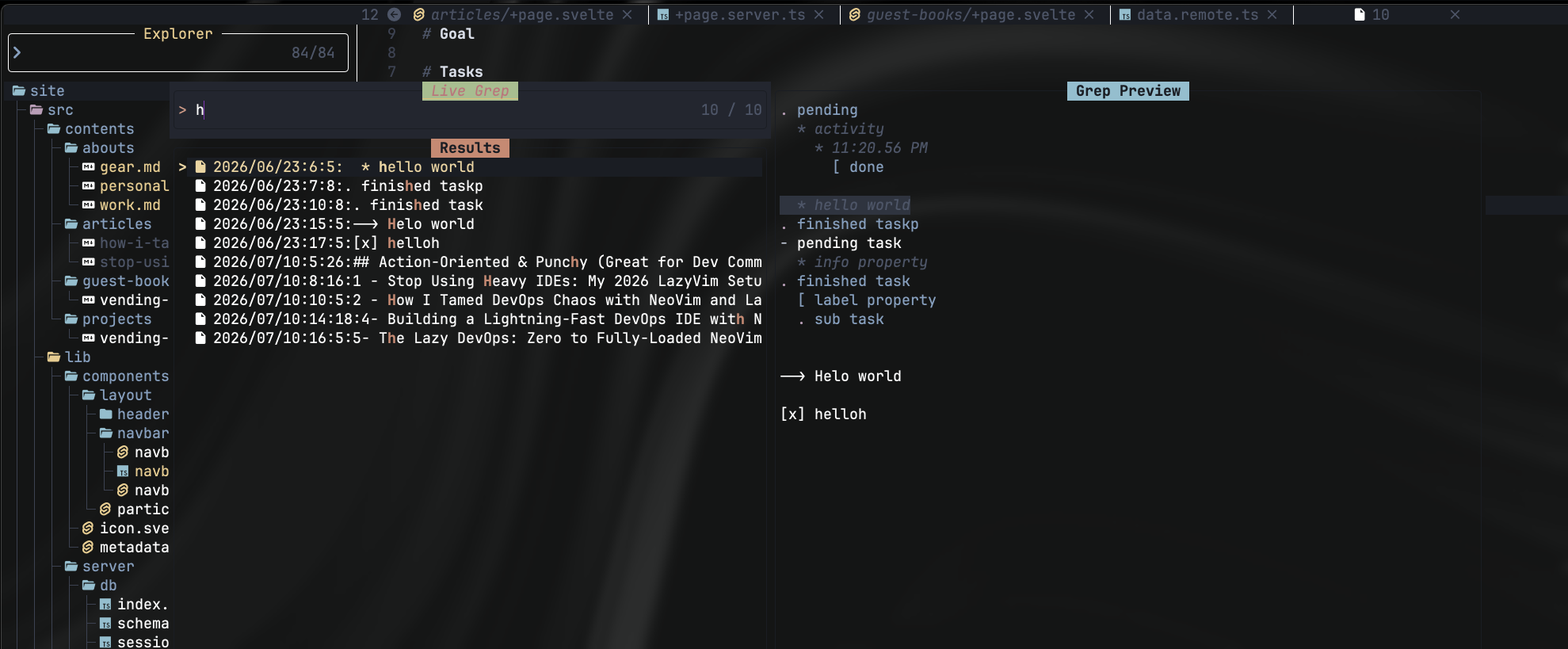
Conclusions
By swapping heavy graphical interfaces for terminal-based counterparts and orchestrating them with LazyVim, I have built an environment that uses less than 150MB of RAM at startup. Yet, it handles complex LSPs, AI helpers, iOS builds, REST API testing, and personal documentation without breaking a sweat.
In the next part, we will look at how i leverage the lazyvim for quick coding, adjust file name or adjusting multiple cursor like vscode.